Creating Looped Clips
You can create looped clips using the Loop command or using the Loop Trim tool.
To loop a clip:
1. Select an audio or MIDI clip, or clip group.

You can also select clips across tracks for looping.
2. Do one of the following:

Choose
Clip > Loop.
Right-click the clip you want to loop and select
Loop.
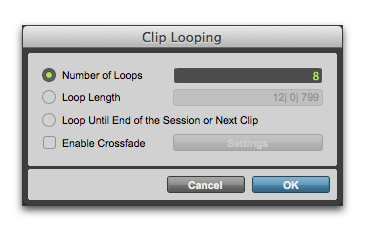
Clip Looping dialog
Press Command+Option+L (Mac) or Control+Alt+L (Windows) to open the Clip Looping dialog.
3. In the Clip Looping dialog, do one of the following:
Select the
Number of Loops option and enter the number of times to loop the clip.
Select the
Loop Length option and enter the duration according to the main timebase. If the duration is not an exact multiple of the source loop’s duration, the last loop iteration will be truncated.
Select the
Loop Until End of Session or Next Clip option. The looped clip will be repeated until the end of the project, or until the next clip on the track. If necessary, the last loop iteration will be truncated to fit.
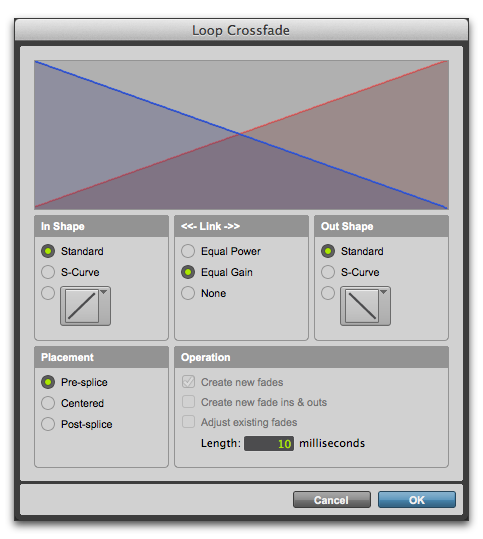
4. To add a crossfade at the loop point, select the Enable Crossfade option. To edit the loop crossfade, do the following:
a. Click the Settings button.
b. Configure the Loop Crossfades.
c. Click OK.
Loop Crossfade dialog
5. In the Clip Looping dialog, click OK.