Repeating Clips
The Repeat command is similar to Duplicate, but lets you specify the number of times the selected material is duplicated.
As with the Copy and Paste commands, certain rules apply when repeating material on multiple tracks (see
“Editing Across Multiple Tracks” on page 283).
You can also loop clips (see
“Clip Looping” on page 517).
To repeat a selection or clip:
1. If working with material that is bar- and beat-based, such as loops, set the Main Time Scale to Bars|Beats.
2. If you want to constrain the selection to the current Grid value, set the Edit mode to Grid.
3. Make an Edit selection.
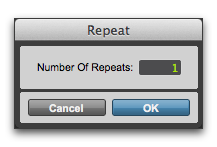
4. Choose Edit > Repeat. In the Repeat dialog, enter the number of times you want the material to repeat, then click OK.
Repeat dialog

Press Option+R (Mac) or Alt+R (Windows) to open the Repeat dialog for any selected clips.
The material is placed immediately after the selection’s end point, and duplicated the specified number of times.
In Shuffle mode, the repeated data is placed directly after the end of the selection. Clips occurring after it slide to accommodate the repeated material. In Slip mode, the repeated material overlaps any subsequent data.