Inserting Meter Events
To insert a meter event:
1. Do one of the following:

Choose
Event > Time Operations > Change Meter.
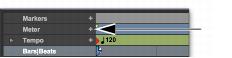
Click the Add Meter Change button at the right of the Meter ruler.
Add Meter Change button
With the Grabber, Control-click (Mac) or Start-click (Windows) at the location where you want to insert the event.
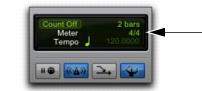
Double click the meter display in the Transport window.
Current meter displayed in Transport window
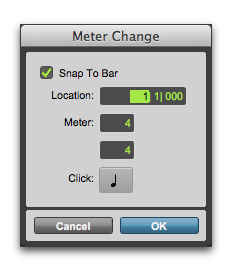
2. In the Meter Change window, enter the Location and Meter for the meter change.
3. If you want the inserted meter event to fall cleanly on the first beat of the nearest measure, select the Snap To Bar option.
Meter Change window
4. Select a note value for the number of clicks to sound in each measure. For a dotted-note click value, select the dot (.) option.

For some meters, it may be desirable to use a dotted value for the click. For instance, if using a meter of 6/8, a dotted quarter note click (yielding two clicks per measure) is generally more suitable than a straight eighth note click (six clicks per measure).
5. Click OK to insert the new meter event. The new meter event is inserted and appears in the Meter ruler.
Each meter event has a small yellow triangle next to it that indicates its location. These triangles can be selected for copying and pasting, and they can be double-clicked to edit the meter event.