Scaling and Stretching Tempo Events with the Trim Tool
The Trim tool lets you scale all the tempo events of the project, or within a Timeline selection. The Trim tool also lets you stretch a clip of tempo events to cover a longer or shorter area in the Timeline.
To scale all the project’s tempo events with the Trim tool:
1. Open the Tempo Editor.
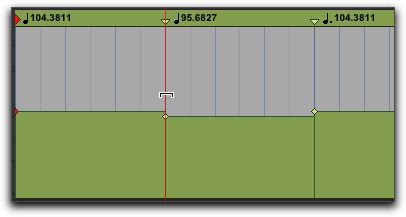
2. With the Trim tool, click above any tempo event and drag up or down. Dragging up increases the tempo values for all tempo event in BPM; dragging down decreases them.
Changing all tempo events with the Trim tool
To scale selected tempo events with the Trim tool:
1. Open the Tempo Editor.
2. With the Selector tool, select the area you want to edit.
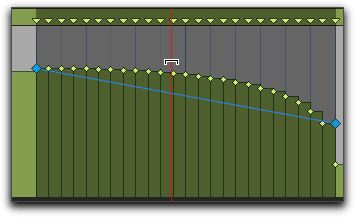
3. With the Trim tool, click within the selected area, and drag up or down. Dragging up increases the tempo values of the selection in BPM; dragging down decreases them.
Changing selected tempo events with the Trim tool
To adjust the rate of tempo change over absolute time with the Trim tool:
1. Open the Tempo Editor.
2. With the Selector tool, select the area you want to edit.
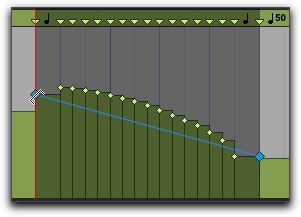
3. With the Trim tool, click either the start or end handle for the selected range, and drag up or down. The BPM values for tempo events scale accordingly and tempo events scale over a longer or shorter amount of absolute time.
Adjusting the rate of tempo change with the
Trim tool
To scale the duration of tempo changes with the Trim tool:
1. Open the Tempo Editor.
2. With the Selector tool, select the area you want to edit.
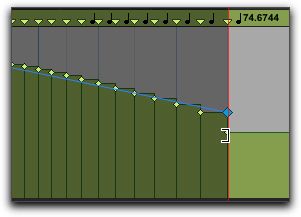
3. With the Trim tool, click at the start or end of the selection, and drag horizontally. Tempo events do not change in terms of actual BPM values, but they are scaled over a longer or shorter amount of absolute time.
Scaling the duration of selected tempo events with the Trim tool