Inserting Tempo Events
To insert a tempo event:
1. Click in the Tempo ruler where you want to insert the tempo event.
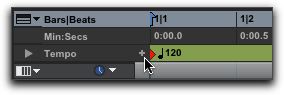
2. Click the Add Tempo Change button at the left of the Tempo ruler.
Add Tempo Change button
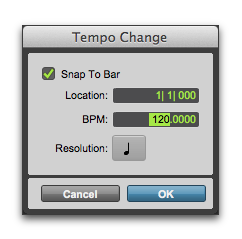
3. In the Tempo Change window, enter the Location and BPM value for the tempo change.
Tempo Change dialog
4. To place the inserted tempo event cleanly on the first beat of the nearest measure, select the Snap To Bar option.
5. To base the BPM value on something other than the default quarter note, select a different note value.
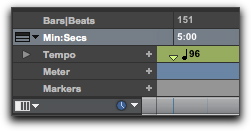
6. Click OK. The new tempo event is inserted and appears in the Tempo ruler.
Inserted tempo event
Each tempo event has a small green triangle next to it that indicates its location. These triangles can be dragged to move the tempo event, and they can be double-clicked to edit the tempo event.